Guía de instalaciónInstallation guide
Instala EdgeMaker paso a paso.Install EdgeMaker step by step.
Unos 3 minutos. Tu Mac te mostrará uno o dos avisos de seguridad; aquí ves cada uno tal como aparece y qué pulsar.
About 3 minutes. Your Mac will show one or two security notices; here you see each one as it appears and what to click.
Estamos preparando la firma oficial con Apple. Mientras llega, macOS avisa porque todavía no reconoce a Cero Stress como editor, no porque el archivo tenga un problema. El instalador copia EdgeMaker a la carpeta de extensiones de Adobe y añade un pequeño agente, cerostress.updater, el mismo para todas las extensiones de Cero Stress, que se ocupa de tu licencia y tu suscripción cuando Illustrator no tiene conexión. No toca nada más, y «EdgeMaker Desinstalador» quita lo que puso (el agente se queda solo si otra extensión de Cero Stress lo usa).
We are preparing our official signature with Apple. Until it arrives, macOS shows a notice because it doesn’t recognize Cero Stress as a publisher yet, not because the file has a problem. The installer copies EdgeMaker into Adobe’s extensions folder and adds a small agent, cerostress.updater, shared by all Cero Stress extensions, that takes care of your license and subscription when Illustrator has no connection. It touches nothing else, and “EdgeMaker Uninstaller” removes what it added (the agent stays only if another Cero Stress extension uses it).
Antes de empezar
Before you start
- Adobe Illustrator 2020 o posterior, en un Mac.
- Tu clave de licencia: la de evaluación de 7 días o la de tu suscripción. Llega a tu correo.
- Cierra Illustrator del todo.
- Adobe Illustrator 2020 or newer, on a Mac.
- Your license key: your 7-day evaluation key or your subscription key. It arrives in your email.
- Quit Illustrator completely.
Mac
Archivo: EdgeMaker-mac.dmg. macOS pide permiso una sola vez, y el propio disco trae el atajo para darlo.
File: EdgeMaker-mac.dmg. macOS asks for permission only once, and the disk itself has the shortcut to give it.
-
Abre el archivo y haz doble clic en ① «EdgeMaker Installer»
Open the file and double-click ① “EdgeMaker Installer”
Abre EdgeMaker-mac.dmg desde Descargas. La ventana del disco es el paso 1: arriba te dice qué hacer, y abajo está esta guía en PDF.
Open EdgeMaker-mac.dmg from Downloads. The disk window is step 1: the top line tells you what to do, and this guide is at the bottom as a PDF.
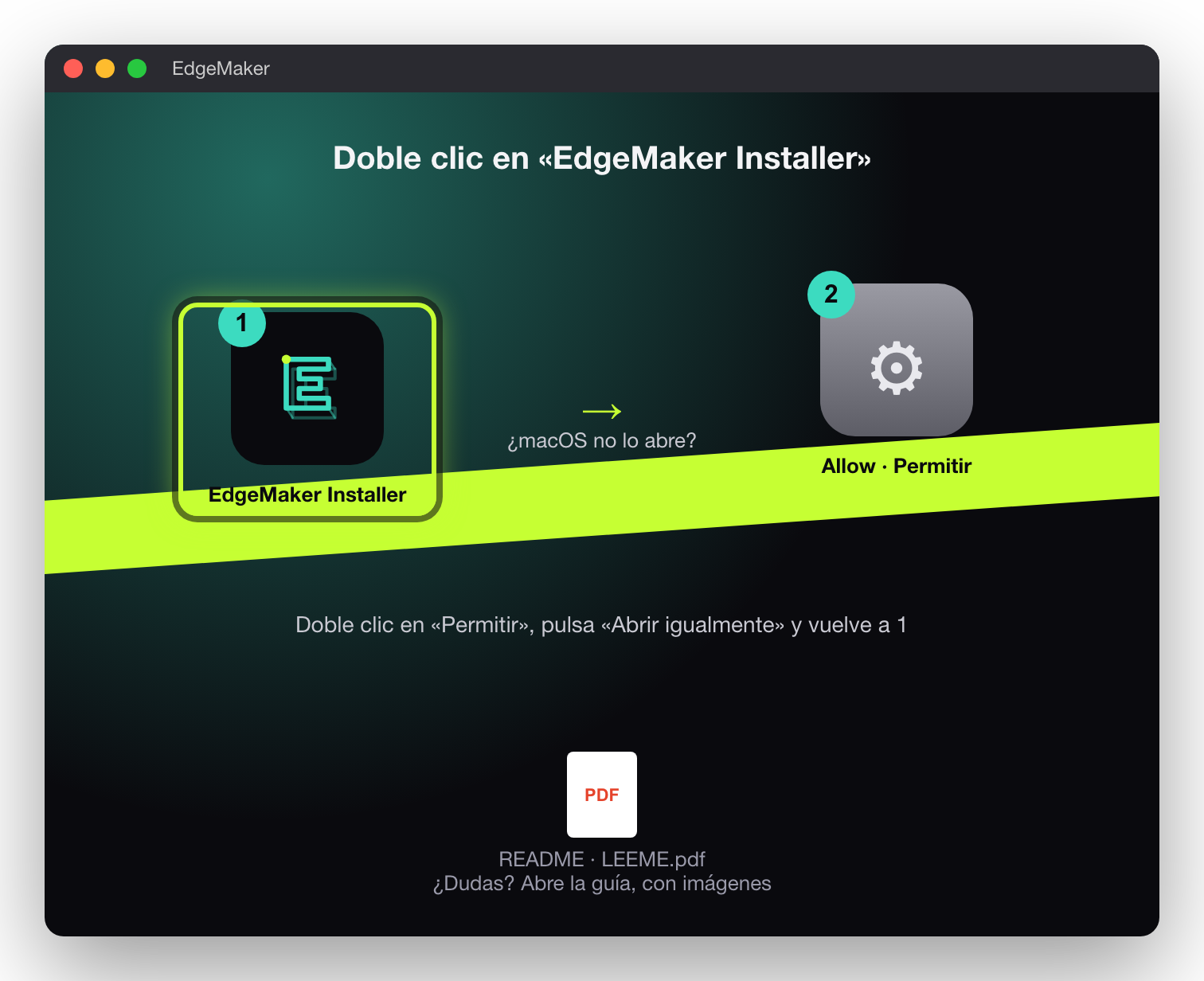
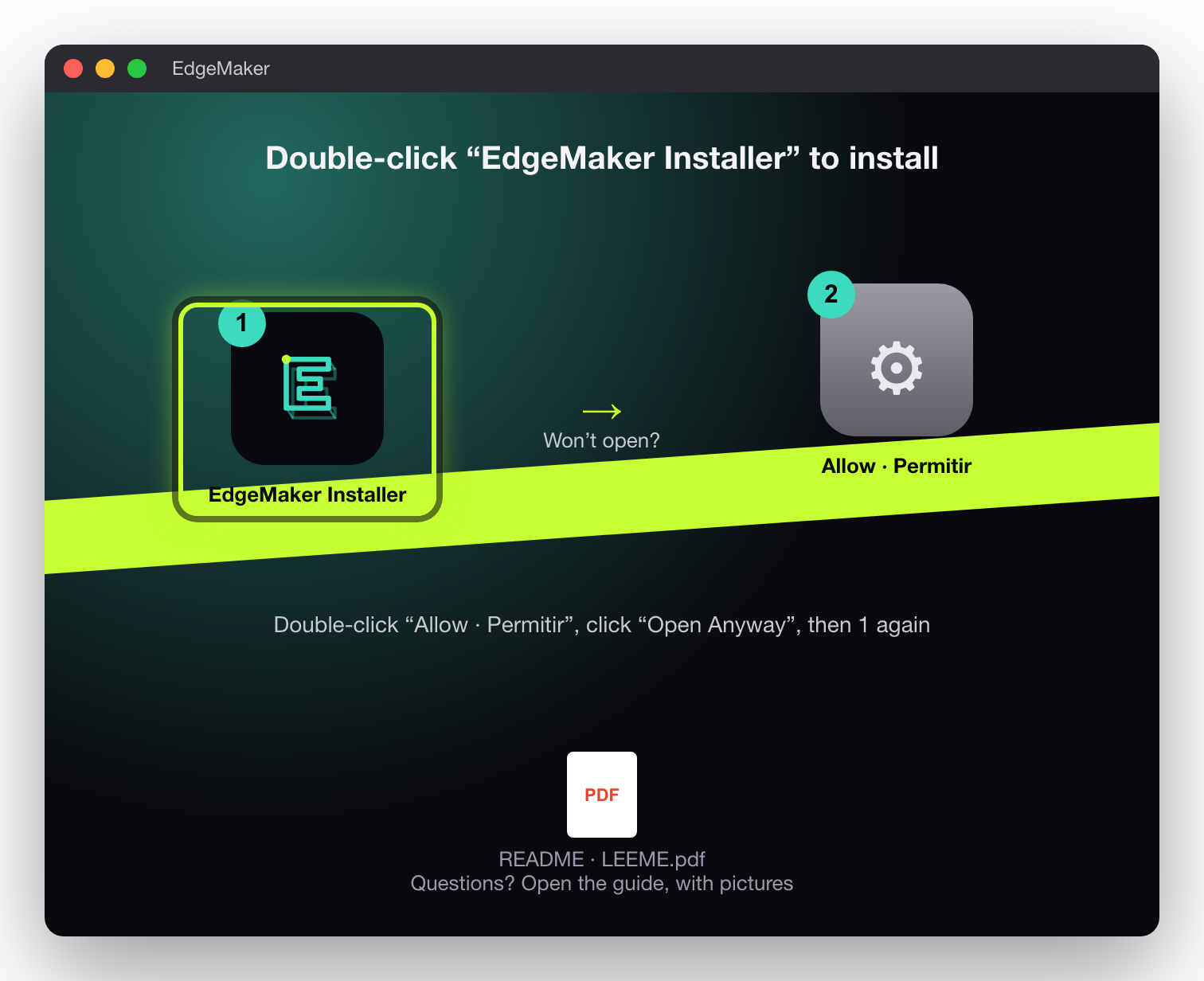
Ventana del disco de EdgeMaker EdgeMaker disk window -
Si macOS dice que no se abrió, pulsa «Listo»
If macOS says it was not opened, click “Done”
No pulses «Trasladar a la Papelera». Es el aviso normal para apps que aún no tienen la firma de Apple.
Don’t click “Move to Trash”. It is the normal notice for apps that don’t have Apple’s signature yet.
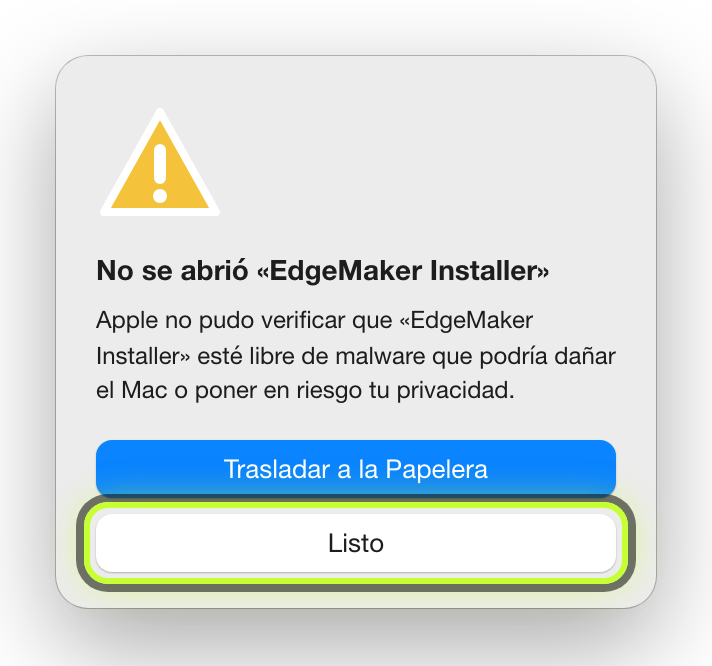
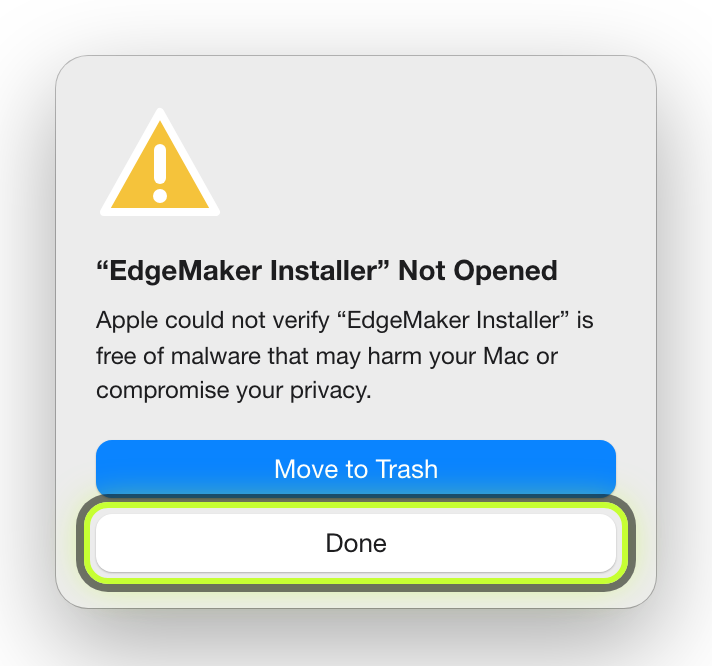
Imagen de referencia · macOS 15 Reference image · macOS 15 -
Doble clic en ② «Allow · Permitir» y pulsa «Abrir igualmente»
Double-click ② “Allow · Permitir” and click “Open Anyway”
«Permitir» abre Ajustes del Sistema justo en Privacidad y seguridad › Seguridad. Pulsa Abrir igualmente junto a «EdgeMaker Installer». (Sin el atajo: menú Apple → Ajustes del Sistema → Privacidad y seguridad, al final.)
“Allow · Permitir” opens System Settings right at Privacy & Security › Security. Click Open Anyway next to “EdgeMaker Installer”. (Without the shortcut: Apple menu → System Settings → Privacy & Security, at the bottom.)
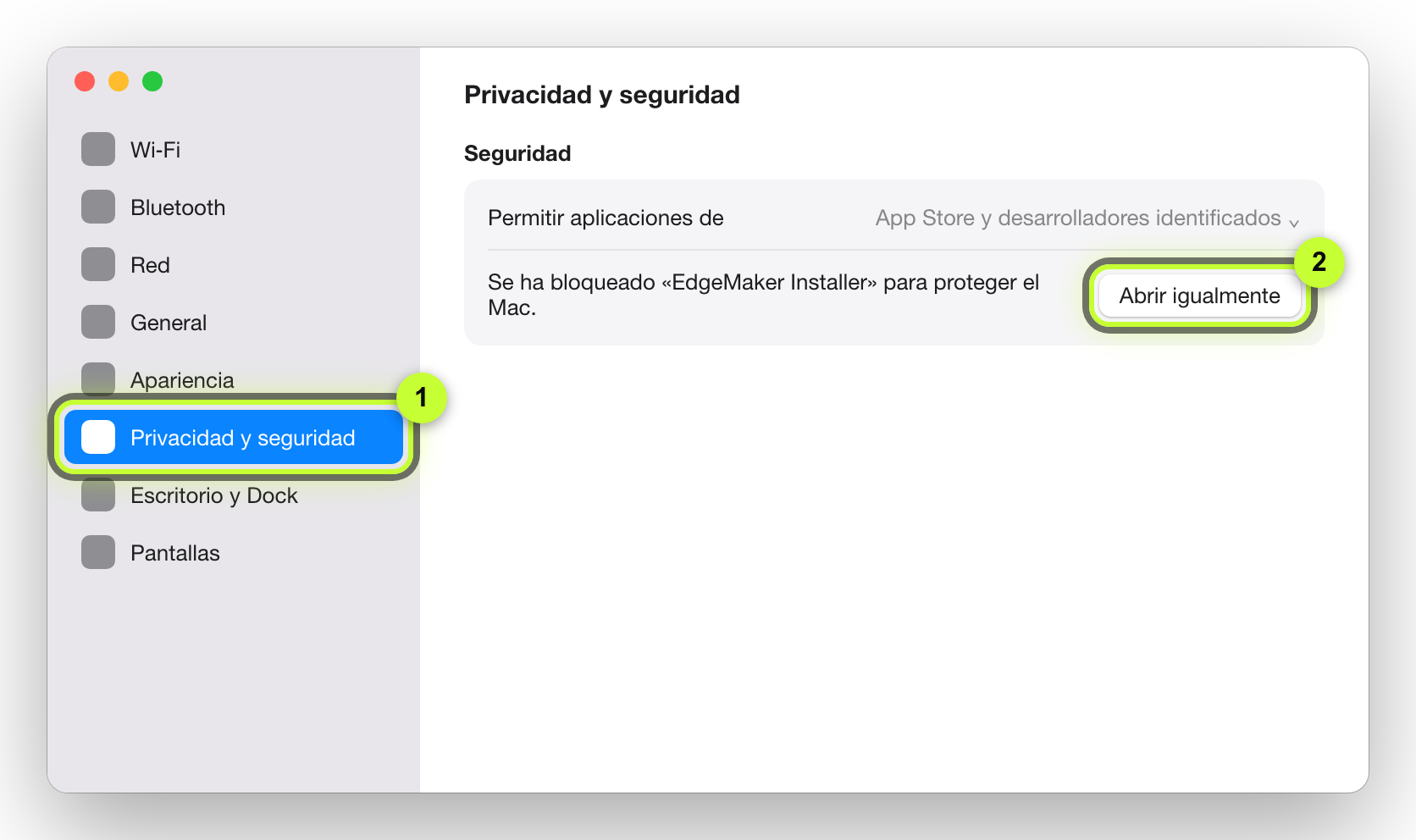
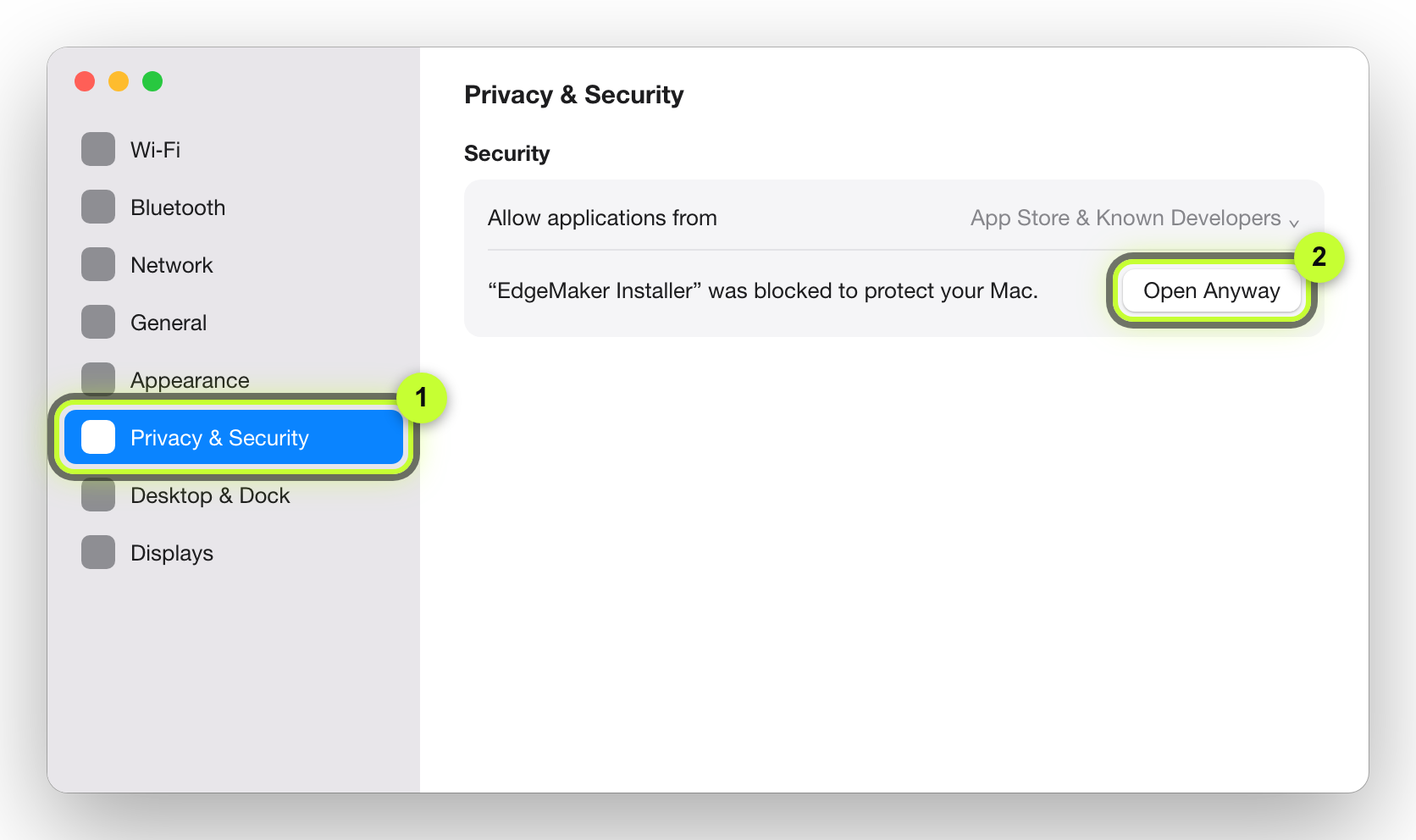
Imagen de referencia · el botón aparece durante una hora después del aviso Reference image · the button appears for one hour after the notice -
Vuelve a ① «EdgeMaker Installer» y confirma
Go back to ① “EdgeMaker Installer” and confirm
macOS pregunta una última vez. Pulsa Abrir igualmente y usa Touch ID o la contraseña de tu Mac. Ya no vuelve a pedir permiso.
macOS asks one last time. Click Open Anyway and use Touch ID or your Mac’s password. It won’t ask for permission again.
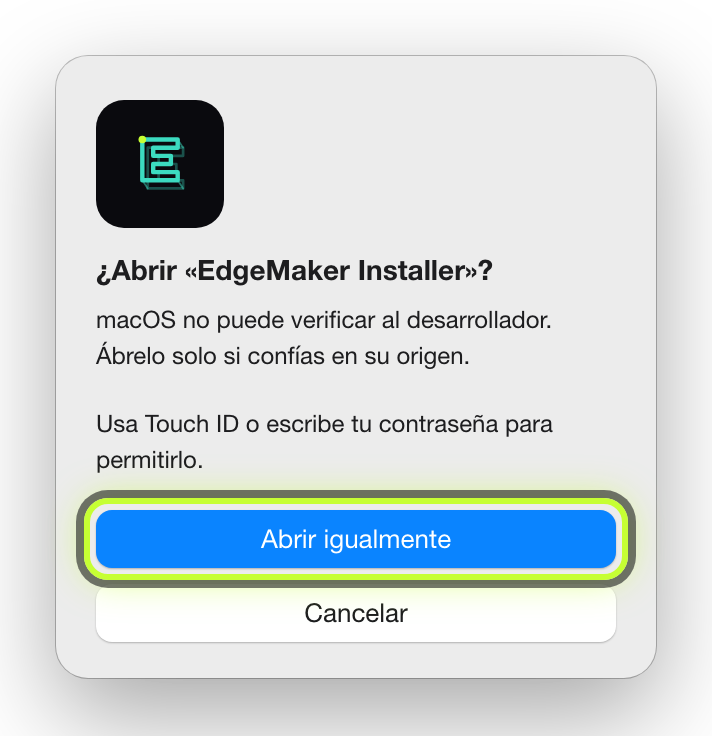
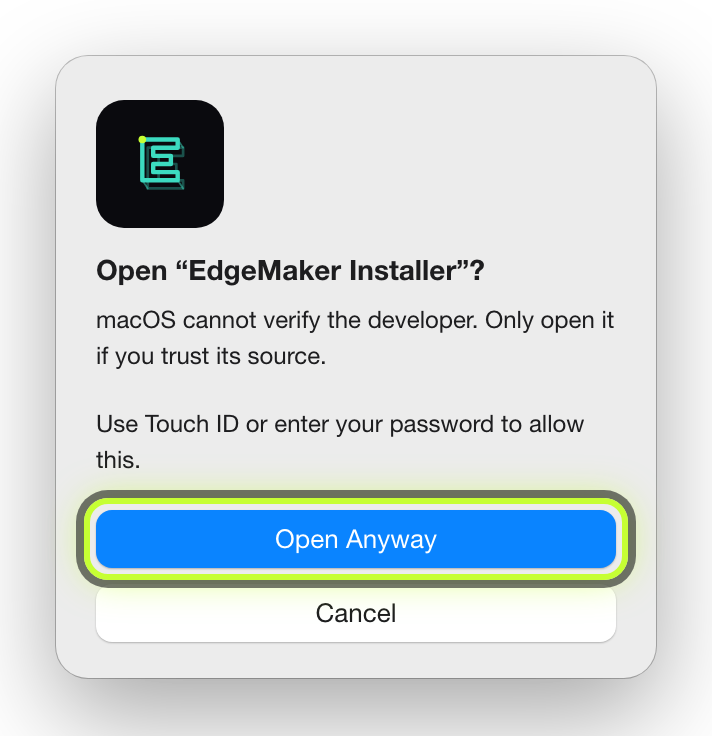
Imagen de referencia Reference image -
Pega tu clave
Paste your key
EdgeMaker te pide la clave antes de instalar. Pulsa Tengo mi clave y pégala completa. Se activa en ese momento. Si aún no la tienes, elige «Activar después»: el panel te la pedirá al abrirlo.
EdgeMaker asks for your key before installing. Click I have my key and paste it in full. It is activated right away. If you don’t have it yet, choose “Activate later”: the panel will ask for it when you open it.
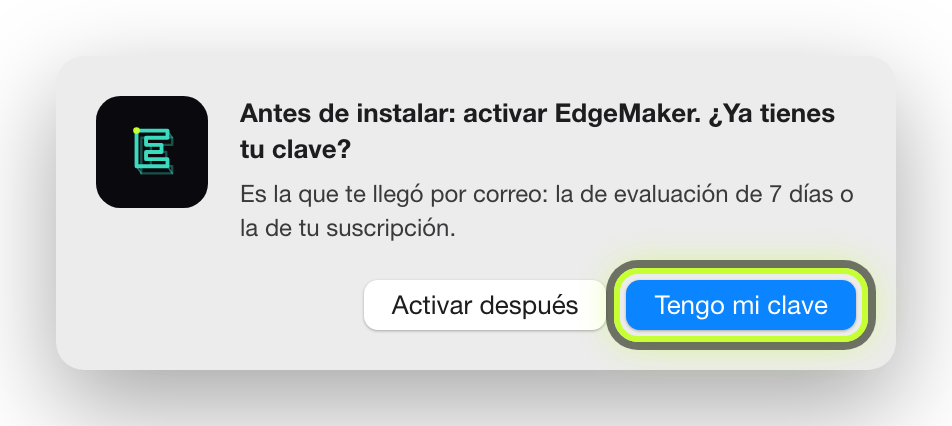
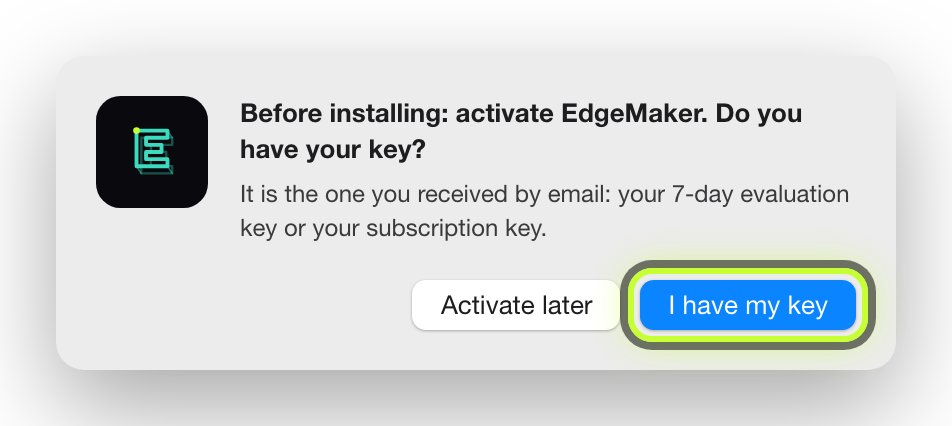
Pantalla de EdgeMaker EdgeMaker screen -
Sigue el instalador: licencia, versiones de Illustrator e instalar
Follow the installer: license, Illustrator versions and install
Pulsa Continuar, acepta la licencia y, en Tipo de instalación, deja marcadas las versiones de Illustrator donde quieres EdgeMaker. Pulsa Instalar y escribe la contraseña de tu Mac.
Click Continue, accept the license and, under Installation Type, keep the Illustrator versions you want EdgeMaker in ticked. Click Install and enter your Mac’s password.
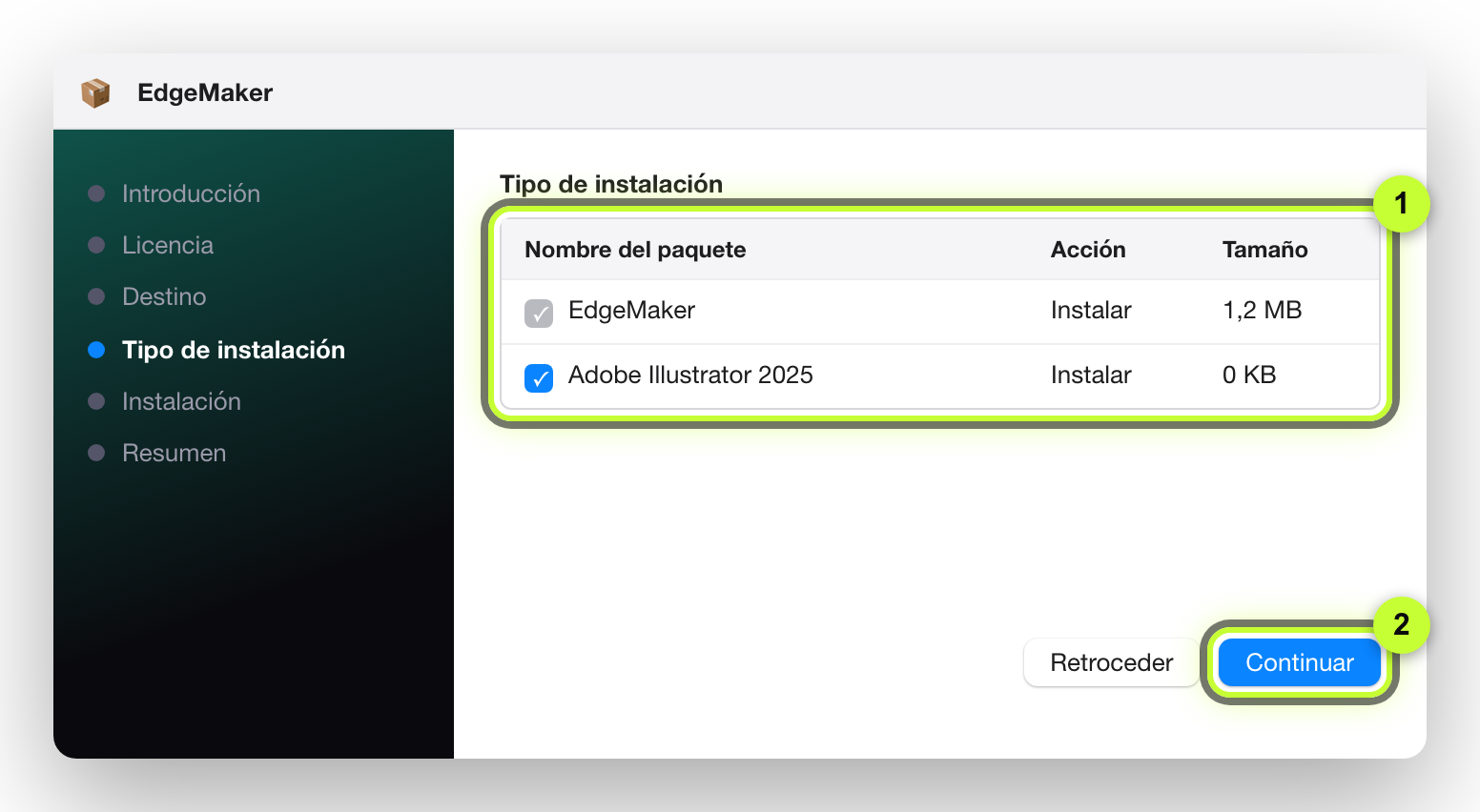
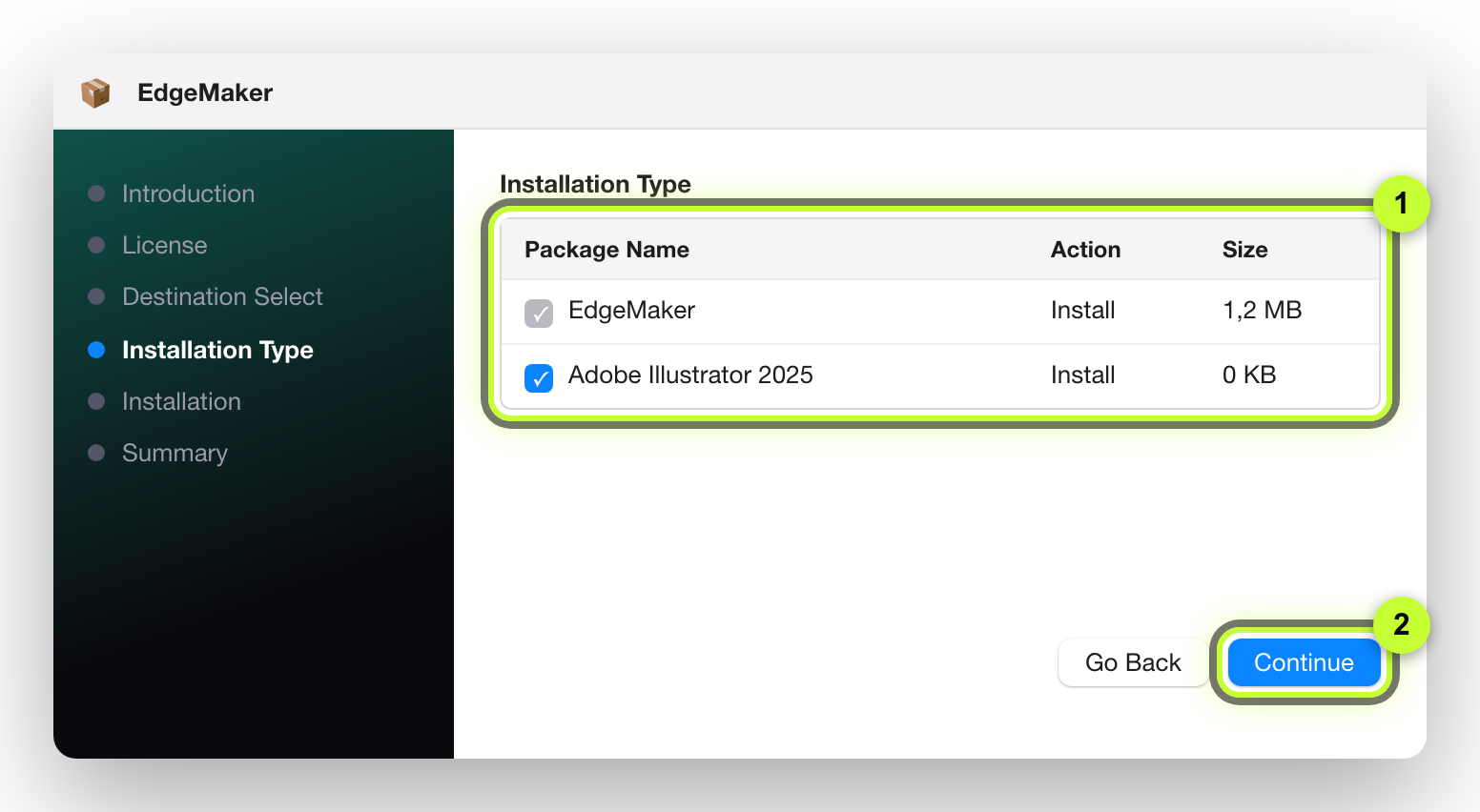
Instalador de EdgeMaker EdgeMaker installer -
Abre Illustrator → Ventana → Extensiones → EdgeMaker
Open Illustrator → Window → Extensions → EdgeMaker
Listo. Si Illustrator estaba abierto, ciérralo del todo (⌘Q) y vuelve a abrirlo.
Done. If Illustrator was open, quit it completely (⌘Q) and open it again.
Puede que macOS avise «Se añadió un elemento en segundo plano». Es cerostress.updater, el agente que se ocupa de tu licencia; es el mismo para todas las extensiones de Cero Stress, así que verás uno solo aunque tengas varias. Aparece en Ajustes del Sistema › General › Elementos de inicio de sesión. Si lo apagas, EdgeMaker sigue funcionando: la licencia aguanta 7 días y, si Illustrator tiene internet, el panel la renueva solo. Cuando haga falta, el panel te dice dónde volver a encenderlo.
macOS may notify “Background item added”. That is cerostress.updater, the agent that takes care of your license; it is shared by all Cero Stress extensions, so you will see just one even if you have several. It appears in System Settings › General › Login Items. If you turn it off, EdgeMaker keeps working: the license lasts 7 days and, if Illustrator has internet, the panel renews it on its own. When needed, the panel tells you where to turn it back on.
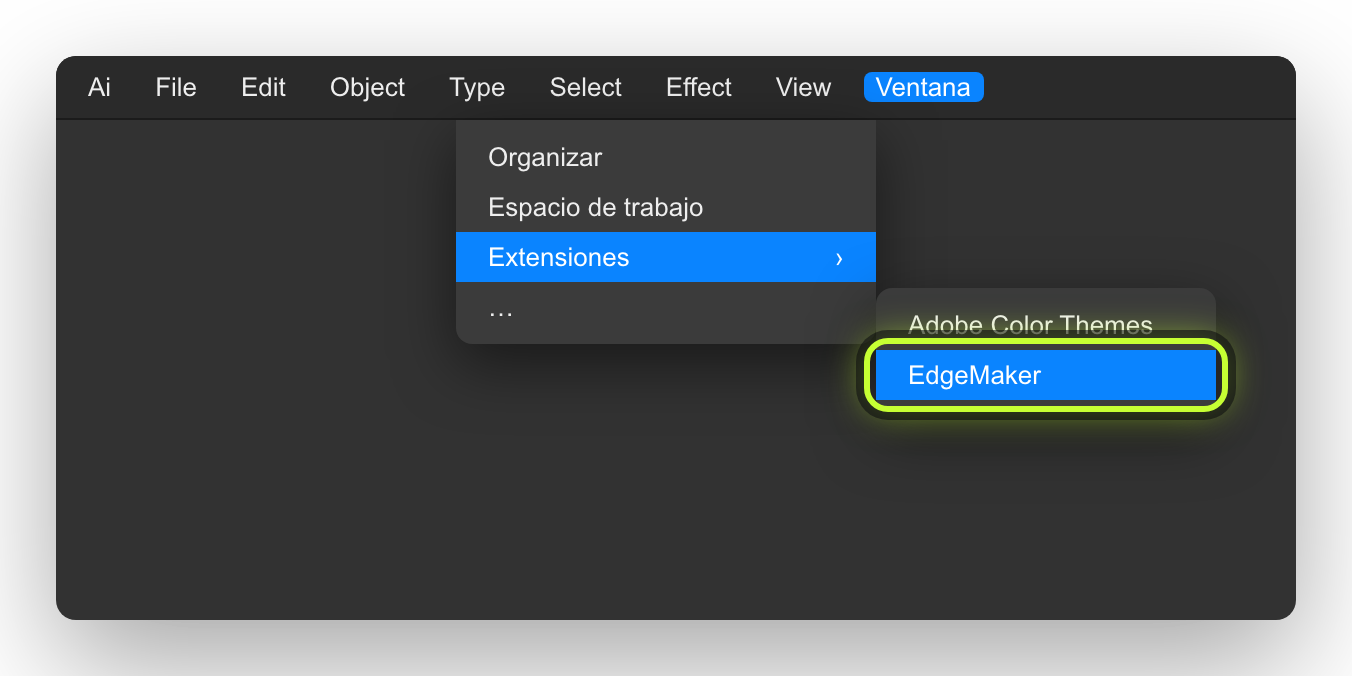
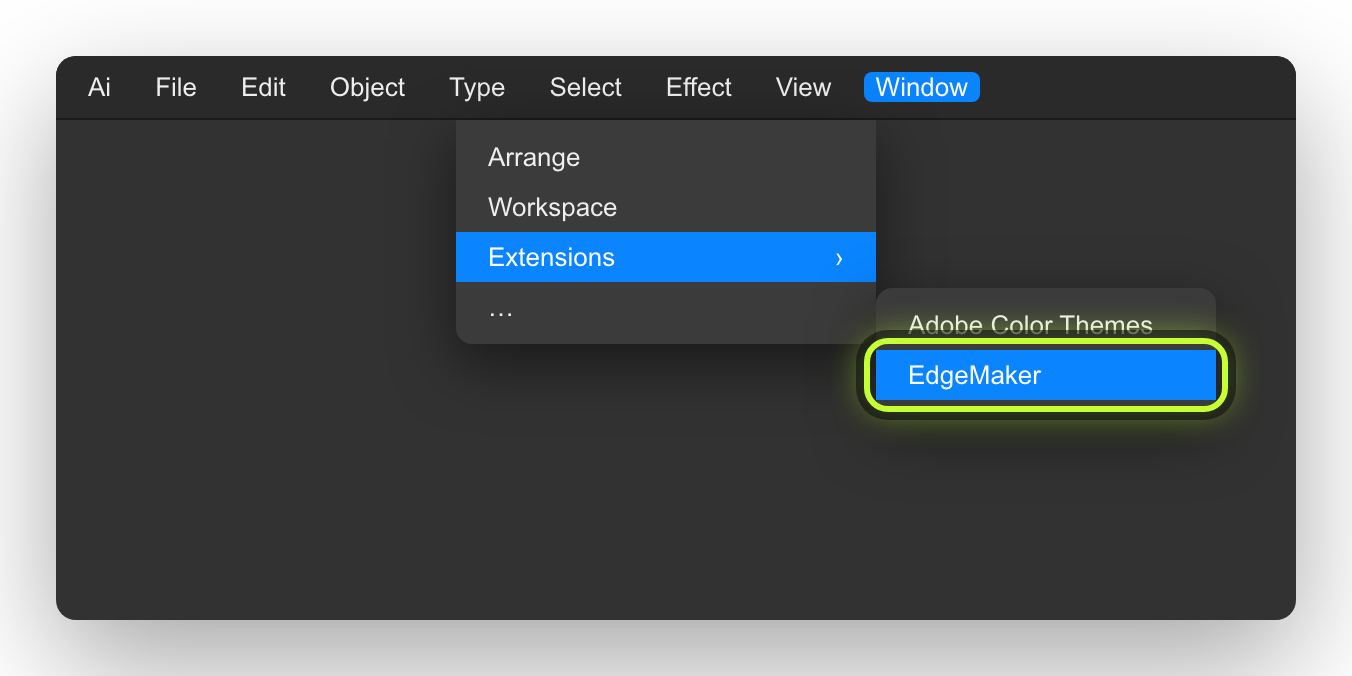
Imagen de referencia Reference image
DesinstalarUninstall
Para quitarlo de este equipo o pasarlo a otro.
To remove it from this computer or move it to another one.
- Aplicaciones › EdgeMaker Desinstalador. Se instala junto con EdgeMaker.
- Al desinstalar, se suelta la licencia de este equipo, que queda libre para activarla en otro, y se borran la licencia y la clave de este equipo. Se quita EdgeMaker junto con cerostress.updater, salvo que otra extensión de Cero Stress lo siga usando.
- Se conserva el perfil del taller: materiales, máquinas, calibración y ajustes. Si vuelves a instalar, te pedirá la clave.
- Sin internet, te avisa de que la plaza seguirá ocupada y te pregunta si quieres desinstalar igualmente. Puedes soltarla después desde el panel de otro equipo (Licencia › Soltar esa máquina) o escribiéndonos.
- Applications › EdgeMaker Uninstaller. It is installed together with EdgeMaker.
- Uninstalling releases the license from this computer, so it is free to activate on another one, and deletes the license and key from this computer. EdgeMaker is removed along with cerostress.updater, unless another Cero Stress extension still uses it.
- Your shop profile is kept: materials, machines, calibration and settings. If you install again, it will ask for your key.
- Without internet, it warns you that the seat will stay taken and asks whether to uninstall anyway. You can release it later from the panel on another computer (License › Release that machine) or by writing to us.
¿Te atascaste?
Stuck?
Escríbenos a support@cero-stress.com con una captura del aviso que ves y tu versión de macOS. Te respondemos con el siguiente paso.
Write to support@cero-stress.com with a screenshot of the notice you see and your macOS version. We’ll reply with the next step.